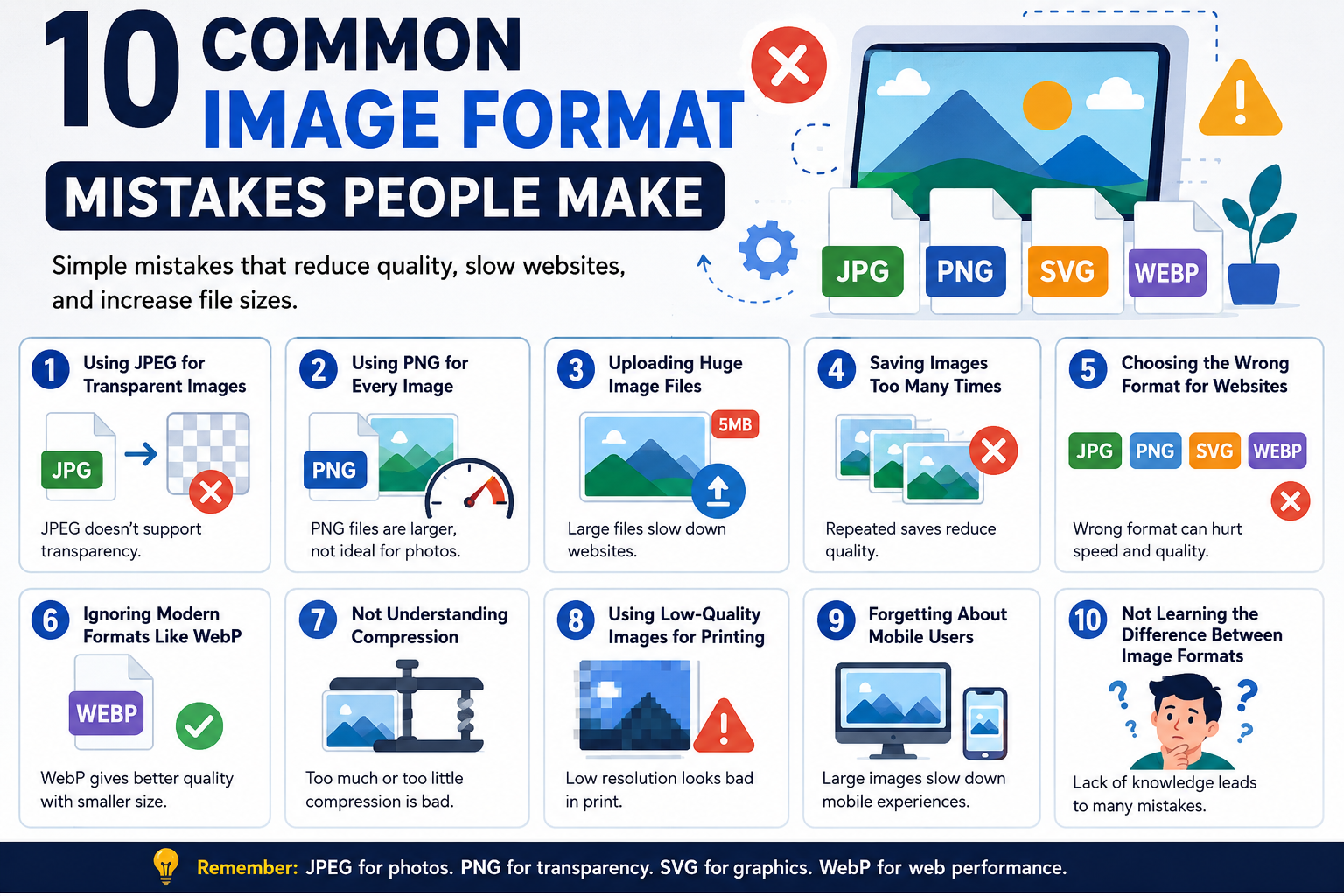
Images are everywhere. We use them on websites, social media, blogs, school projects, and online stores. But many people make simple mistakes when choosing image formats. These mistakes can lower image quality, slow down websites, or make files too large.
If you have ever wondered why an image looks blurry, loads slowly, or loses its transparent background, you may be using the wrong format.
Here are 10 common image format mistakes people make and easy ways to fix them.
1. Using JPEG for Transparent Images
One of the biggest mistakes is using JPEG images when transparency is needed.
JPEG files do not support transparent backgrounds. If you save a logo or icon as JPEG, the transparent area usually turns white or another solid color.
Better Choice:
Use PNG when you need transparency.
PNG works great for:
- Logos
- Icons
- Stickers
- Images with transparent backgrounds
2. Using PNG for Every Image
Many people think PNG is always the best option. That is not true.
PNG files are usually larger than JPEG files. If you upload large PNG images to a website, your pages may load slowly.
Better Choice:
Use JPEG for photos and normal pictures.
JPEG is better for:
- Nature photos
- Portrait images
- Blog pictures
- Product photos
It helps keep file sizes smaller.
3. Uploading Huge Image Files
Some people upload images directly from a camera or phone without resizing them.
A photo taken by a modern smartphone can be several megabytes in size. Large files slow down websites and use more storage space.
Better Choice:
Resize and compress images before uploading.
Helpful tips:
- Reduce image dimensions.
- Compress files using online tools.
- Choose the correct format.
Smaller images load faster and improve user experience.
4. Saving Images Too Many Times
Every time you edit and re-save a JPEG image, it can lose quality. This is called lossy compression.
After many saves, the image may become blurry or show strange marks.
Better Choice:
Keep an original copy of your image.
Use:
- PNG for editing work
- High-quality JPEG only for final export
This helps protect image quality.
5. Choosing the Wrong Format for Websites
Different image formats have different jobs.
Many beginners use one format for everything without thinking about performance.
Better Choice:
Use the right format for the right purpose.
Quick guide:
- JPEG: Photos and realistic images
- PNG: Transparency and sharp graphics
- SVG: Logos, icons, vector graphics
- WebP: Modern websites and smaller file sizes
Choosing correctly can make your website faster and cleaner.
6. Ignoring Modern Formats Like WebP
Some people still only use PNG and JPEG.
But modern image formats like WebP can give smaller file sizes without hurting image quality.
This is especially useful for websites.
Better Choice:
Use WebP when possible.
Benefits of WebP:
- Smaller files
- Faster loading pages
- Good image quality
Many websites now use WebP to improve speed and SEO.
7. Not Understanding Compression
Compression changes image size and quality.
Some users compress images too much. Others do not compress them at all.
Too much compression creates blurry images. No compression creates huge files.
Better Choice:
Find a balance between quality and size.
Aim for:
- Clear images
- Reasonable file size
- Fast loading speed
Testing different settings can help you find the best result.
8. Using Low-Quality Images for Printing
Images that look good on a phone screen may look bad when printed.
This happens because printing usually needs higher resolution.
Better Choice:
Use high-resolution files for printing.
For print projects:
- Use larger dimensions
- Use higher quality exports
- Check image resolution before printing
This gives sharper printed results.
9. Forgetting About Mobile Users
Many websites use large images designed only for desktop screens.
Mobile users may struggle with slow loading pages.
Better Choice:
Optimize images for all devices.
Good practices include:
- Smaller image sizes
- Responsive images
- Efficient file formats
Fast websites create a better experience for visitors.
10. Not Learning the Difference Between Image Formats
Many problems happen simply because people do not know what each image format does.
Understanding formats can save time and improve results.
Simple Format Guide:
JPEG (JPG)
Best for photos. Smaller file size.
PNG
Best for transparency and graphics.
SVG
Best for logos and scalable designs.
WebP
Best for modern websites and optimization.
Learning these basics can prevent many common mistakes.
Final Thoughts
Image formats may look confusing at first, but understanding a few simple rules can make a big difference.
Using the wrong format can lead to:
- Slow websites
- Poor image quality
- Large file sizes
- Broken transparency
The good news is that these mistakes are easy to fix.
Remember this simple rule:
JPEG for photos. PNG for transparency. SVG for graphics. WebP for web performance.
Once you understand when to use each format, your images will look better, load faster, and work more effectively.
Whether you run a blog, website, online store, or social media page, choosing the correct image format is a small step that can bring big improvements.